

 Bahasa Indonesia
 Deutsch
 Español
 Français
 Português (Brasil)
 Türkçe
 ไทย
 中文(简体)
 中文(繁體)
 日本語
 한국어
Your first run
On this page, you run a complete program on your robot, and learn to use the Erebus control window. You need Erebus installed and your robot.
The Erebus folder
Section titled “The Erebus folder”These are the main folders of the release you downloaded:
| Folder | Contents |
|---|---|
game/worlds |
The worlds (.wbt files). Open one of them to start. |
game/logs |
The game logs written at the end of each game |
player_controllers |
Example controllers |
The control window
Section titled “The control window”- Open
game/worlds/world1.wbtin Webots. - Webots opens the Erebus control window (the robot window of the Main Supervisor) in your web browser. This is where you load your program and run the game.
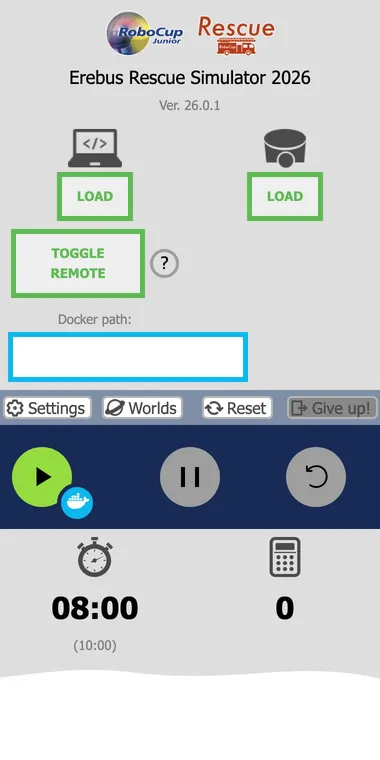
| Part | Use |
|---|---|
| Left LOAD (laptop icon) | Loads the controller program of your robot |
| Right LOAD (robot icon) | Loads your robot (.json file) |
| TOGGLE REMOTE | Lets a program running outside Webots control the robot. See Remote Controller. |
| Docker path | Folder with a Dockerfile, to run your controller in a container with the Docker button next to the play button. See the erebus-dockerfiles repository. This is optional. |
| Settings | Links and options, explained below |
| Worlds | Changes to another world |
| Reset | Resets the loaded program and the game |
| Give up! | Ends the game |
| Timers | The game time, and below it the real-world time in brackets. The game ends when either of them reaches 0. |
| Calculator | The current score |
Run a program
Section titled “Run a program”Download maze.py, a complete program that drives the robot around the maze. It is the program you will write yourself in Navigate the maze.
- Open
game/worlds/world1.wbt. - Load your robot with the right LOAD button, if you have not done so yet. The world reloads with it.
- Load
maze.pywith the left LOAD button. When the program is loaded, the button turns into an orange REMOVE button. - Press the start button. The robot appears in the world and starts moving.

- To stop the robot temporarily, press the pause button.

- If the robot is stuck, press the restart button to trigger a lack of progress. It moves the robot back to the last checkpoint it reached, and costs 5 points.

- Press the Reset button to reset the loaded program and the game in progress. Reload the world if you want to run it again after a game has ended.
The program needs OpenCV, which you installed with the other Python libraries. Messages from your program, and errors, appear in the Webots console.
While the game is running, the score history appears at the bottom of the window. It tells you exactly why you gained or lost points, so it is the best tool to check your program.
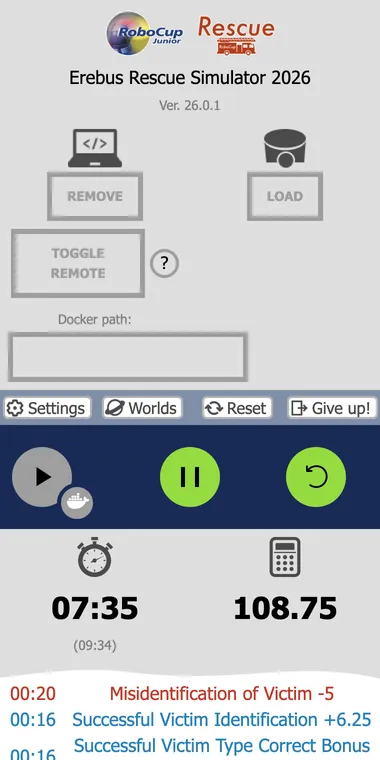
At the end of the game, the same information is saved in the game/logs folder.
Using other worlds
Section titled “Using other worlds”Press Worlds to change to another world. Each world has a thumbnail, and you can also add your own, made with the World Editor.
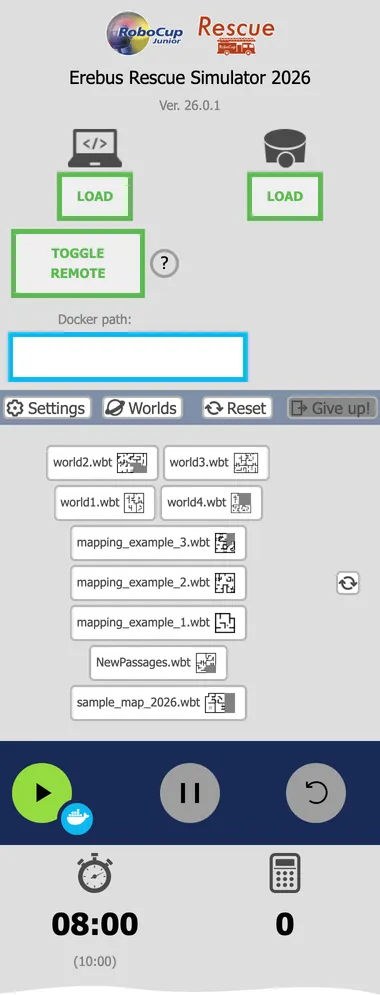
The worlds included in Erebus v26.1 are:
| World | Purpose |
|---|---|
world1.wbt, world2.wbt |
Example worlds. world2.wbt includes Area 4. |
world3.wbt, world4.wbt |
Larger example worlds, which also include fake victims |
mapping_example_1.wbt to mapping_example_3.wbt |
Worlds to test your mapping. See Mapping. |
NewPassages.wbt |
Example of the passages between areas |
Settings
Section titled “Settings”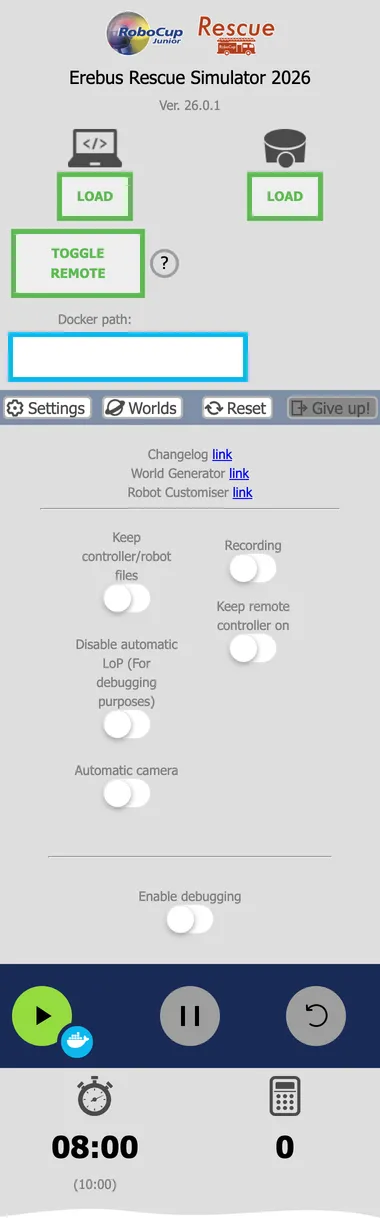
| Setting | Use |
|---|---|
| Keep controller/robot files | Keeps your program and robot loaded when the world is reloaded |
| Disable automatic LoP | Stops the automatic lack of progress after 20 seconds. Only for debugging. |
| Automatic camera | Makes the view follow the robot |
| Recording | Records the game as a video |
| Keep remote controller on | Keeps TOGGLE REMOTE on when the world is reloaded |
| Enable debugging | Prints extra information in the Webots console, for example why a wall token report was rejected |
The links at the top lead to the changelog and to tools for making worlds and robots. To make worlds with the 2026 rules, use the World Editor.
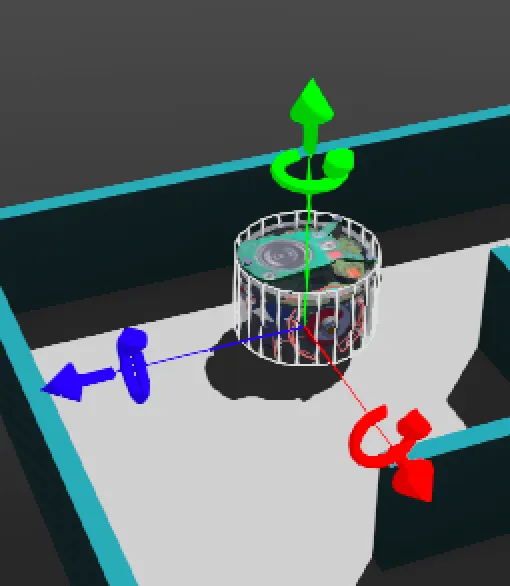
Manually move the robot where you want it to go
Section titled “Manually move the robot where you want it to go”When you click a robot in the simulation window, red, green and blue arrows appear. Drag these arrows with the mouse to move the robot to any position. Note that the robot is not displayed until the program has started.
You have seen a robot explore on its own. Now learn to program it yourself: start with Your first program.

Erebus is part of RoboCupJunior Rescue.
News, events and team documents: RCJ Rescue Community Website
© 2020–2026 Erebus Development Team