

 Bahasa Indonesia
 Deutsch
 Español
 Français
 Português (Brasil)
 Türkçe
 ไทย
 中文(简体)
 中文(繁體)
 日本語
 한국어
Troubleshooting
First of all, check the Webots console. Most problems show an error message there.
Installation
Section titled “Installation”No module named 'cv2'
Section titled “No module named 'cv2'”OpenCV is not installed in the Python used by Webots. Install the required libraries in that Python. If you have several installations, the Python command setting below tells you which one Webots uses.
WARNING: Python was not found
Section titled “WARNING: Python was not found”Webots does not know where Python is.
-
Find it. On macOS and Linux, run
which python3in a terminal. On Windows, check that typingpythonin a new Command Prompt opens Python. If it does not, install Python again, ticking the option to add it to your PATH. -
Open the Webots preferences: Webots > Preferences on macOS, Tools > Preferences on Windows and Linux.
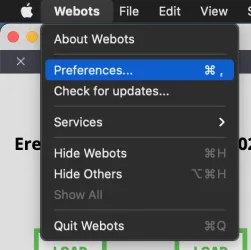
-
Set the path in the Python command field. On Windows,
pythonis usually enough.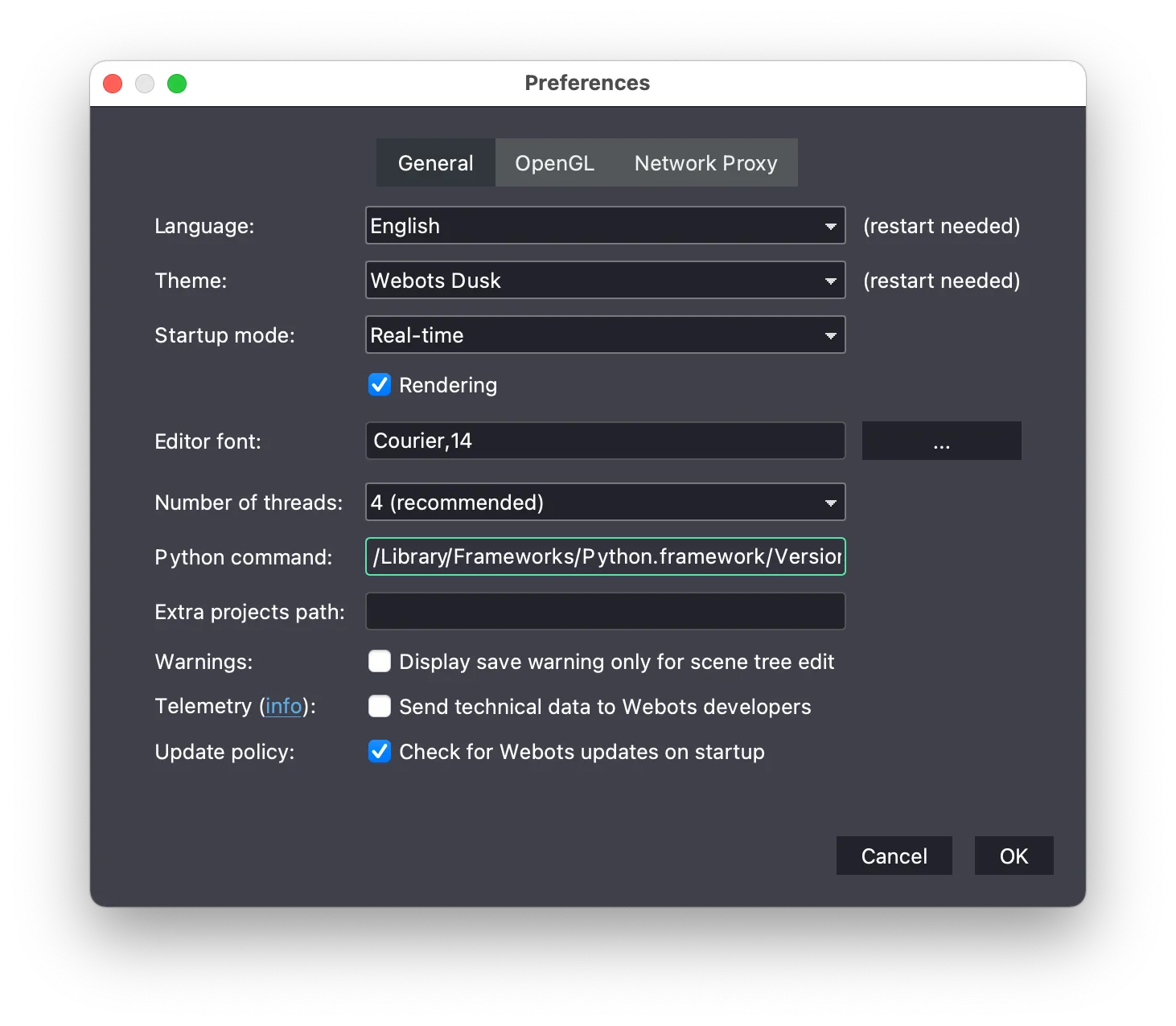
The game timer does not appear
Section titled “The game timer does not appear”The first start can take some minutes while Erebus installs libraries. If it never finishes, check the console for errors. If the automatic installation does not work, install the required libraries yourself.
Running Erebus
Section titled “Running Erebus”The control window does not appear
Section titled “The control window does not appear”The control window is a web page opened by Webots.
- If your browser has blocked it, open the control window while the world is open.
- Otherwise, make sure the Scene Tree is displayed, with Tools > Scene Tree.
- Find DEF MAINSUPERVISOR Robot in the Scene Tree, right-click it and choose Show Robot Window.
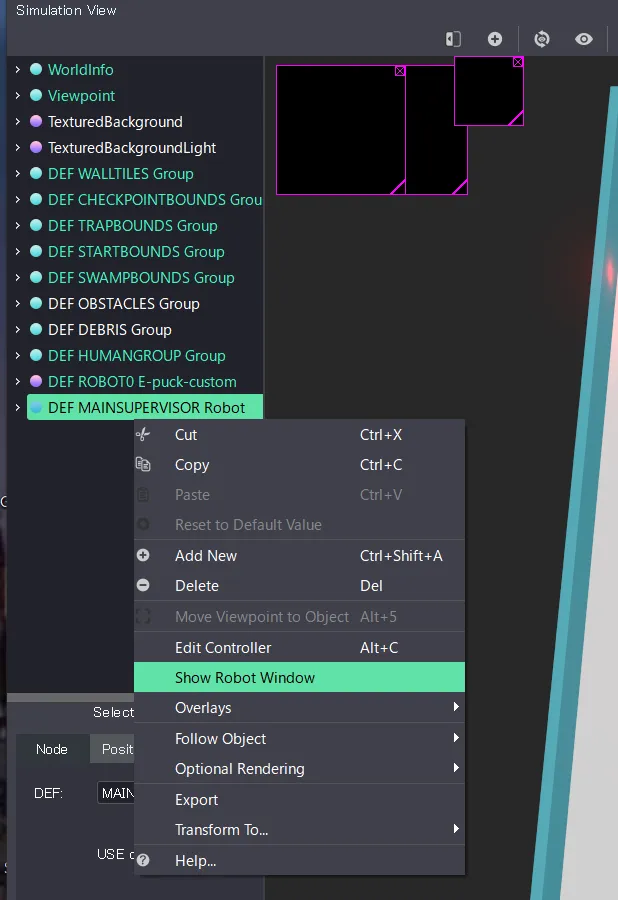
The Webots screen is blank or black
Section titled “The Webots screen is blank or black”Copy the download and unzip it to a separate folder before opening the world.
The simulation runs too slowly
Section titled “The simulation runs too slowly”This is probably due to the performance of your computer. Lowering the quality of the graphics may help:
- Open the Webots preferences.
- Open the OpenGL tab.
- Change the settings.
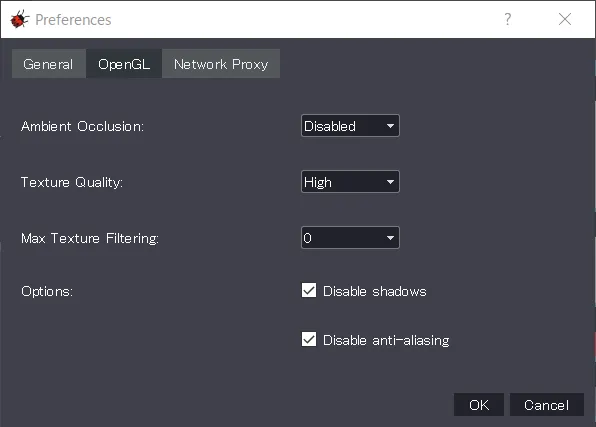
These settings change what the cameras see, and the competition uses its own settings, so check your program with those too.
Your robot
Section titled “Your robot”PROTO parameter 'camera_width' has no matching IS field
Section titled “PROTO parameter 'camera_width' has no matching IS field”Erebus v26.1 shows this error in red when it loads a robot made with the current Robot Customizer. You can ignore it: the robot works, and its cameras have the resolution you chose.
My program says a device was not found
Section titled “My program says a device was not found”See below. Also check that you loaded your robot with the right LOAD button before starting the game.
Your program
Section titled “Your program”Device "..." was not found
Section titled “Device "..." was not found”The device name in your program does not match your robot. The names of the starter robot are in the Reference. For your own robot, they are the names you set in the Robot Customizer. Check that your robot has been loaded.
Nothing happens when I report a wall token
Section titled “Nothing happens when I report a wall token”Turn on Enable debugging in the Settings tab of the control window, and check the console. The most common causes are that the robot had not been stopped for at least 1 second, and that the coordinates were not converted to centimetres. See Communication.
My reports are misidentifications
Section titled “My reports are misidentifications”The robot must be at most half a tile from the token and on the same side of the wall, and each token can only be scored once. Reporting a fake also counts as a misidentification.
The map gets 0% or a scoring error
Section titled “The map gets 0% or a scoring error”Your map must contain the starting tile (5), and it can only be evaluated once. See Submitting the map.
The controller cannot connect in remote mode
Section titled “The controller cannot connect in remote mode”See the Remote Controller guide for your operating system.
Still stuck?
Section titled “Still stuck?”Ask on the Discord server, or open an issue. Include your operating system, your Erebus and Webots versions, and the message in the console.

Erebus is part of RoboCupJunior Rescue.
News, events and team documents: RCJ Rescue Community Website
© 2020–2026 Erebus Development Team