

 Bahasa Indonesia
 Deutsch
 Español
 Français
 Português (Brasil)
 Türkçe
 ไทย
 中文(简体)
 中文(繁體)
 日本語
 한국어
macOS
Running the game server and controller programs on the same computer
Section titled “Running the game server and controller programs on the same computer”First, try running the game server and your controller program on the same computer. This is not the same as the competition setup, but it is useful for debugging locally.
Toggle remote mode
Section titled “Toggle remote mode”Open the world and press “TOGGLE REMOTE” in the control window. The button turns orange to show that remote mode is on.
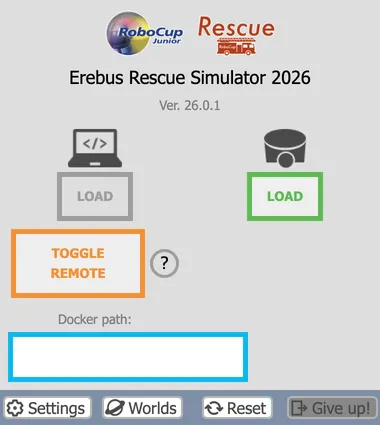
If the control window is not displayed, right-click “DEF MAINSUPERVISOR Robot” in the Scene Tree and choose “Show Robot Window”.
Execute your program
Section titled “Execute your program”Open a terminal and run the following commands, replacing <Your controller path> with the path to your controller program.
export WEBOTS_HOME=/Applications/Webots.app"$WEBOTS_HOME/Contents/MacOS/webots-controller" "<Your controller path>"If Webots is installed in another location or with another name, change WEBOTS_HOME accordingly, for example "/Applications/Webots R2023b.app".
The controller connects to Webots and waits until the game starts.
Start the game
Section titled “Start the game”Press the start button in the control window. The robot appears, and your program starts running.
Terminate the game
Section titled “Terminate the game”To stop the game, press Ctrl+C in the terminal.
When the simulation ends, the Erebus game manager stops too. To run the game again, reload the world.
Running the game server on a different computer
Section titled “Running the game server on a different computer”This is the setup used at official competitions. The computer that runs your controller (the client) and the one that runs the game (the server) must be connected to the same network.
-
(Server) Start Webots on the server, open the world and turn on remote mode in the control window.
-
(Server) Find the IP address of the server, in System Settings > Network.
-
(Client) Run the following commands, replacing
<Your controller path>with the path to your controller program and<Server IP address>with the IP address you found in the previous step.Terminal window export WEBOTS_HOME=/Applications/Webots.app"$WEBOTS_HOME/Contents/MacOS/webots-controller" --protocol=tcp --ip-address=<Server IP address> "<Your controller path>" -
(Server) Start the game by pressing the start button.
Troubleshooting
Section titled “Troubleshooting”- The controller cannot connect: check that the two computers can reach each other, for example with
ping, that the firewall of the server allows TCP port 1234, and that the list of allowed IPs in the Network tab of the Webots preferences is empty or includes the client. No robot name providedis displayed: this message is normal while the controller waits. If it does not go away, remote mode is not on: check the TOGGLE REMOTE button.- The controller does not find a Python library: the program runs with the Python installation of the client, so install the library there.
Official documentation
Section titled “Official documentation”For more details about this setup, see the Webots guide.

Erebus is part of RoboCupJunior Rescue.
News, events and team documents: RCJ Rescue Community Website
© 2020–2026 Erebus Development Team